Smart Copy keeps history of text, images, and other data types that you copy on your iPhone/iPad. Smart Copy can sync the clipboard history to your other devices using iCloud. Smart Copy does not alter content currently in the clipboard, unless you re-copy an item from the history.
Did you know?
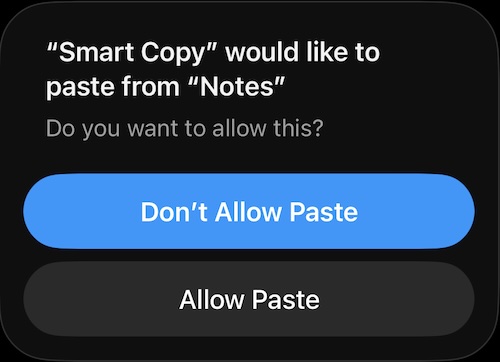
If you're seeing this when you open the app, you can give permission to always allow paste from other apps.
- Go to iOS Settings
- Go to Apps
- Go to Smart Copy
- Go to Paste from Other Apps
- Select Allow
Add current item to clipboard history
Simply open the app. The current clipboard content will automatically be added to the history. You can also enable background mode to automatically add items you copy to the history. See "Settings" for more details.
What Smart Copy stores
- Text
- Images
- Attempts to store virtually any type of data in the clipboard (including movies, archives, PDF, etc.). Up to 10MB size.
Smart Copy stores multiple representations of a single item. For example, if you copy a picture from Safari, Smart Copy will store both the image file and the URL reference to the file. If you open Smart Copy, you will only see the image, but the URL is also stored behind-the-scenes. Likewise, when you copy text, Smart Copy will attempt to store both the plain text and rich text versions (if available). Simply tap "Details" within the Detail View to view the list of representations stored for a specific item.
Main View
The main view of Smart Copy is a table of all your copied clipboard content.
Copy an item onto the clipboard: Tap the row you want to copy. The clip will then highlight to signify that it is in the clipboard, and then moved to the top of the table.
View clip details: Tap the blue disclosure triangle. The Detail View will then appear.
Delete a clip: Tap "Edit" located in the top header. You can then select the clip you want to delete.
Viewing item currently in the clipboard: Clips are ordered by date copied; therefore, the top-most table row is often the item currently in the clipboard, unless (1) you edited or deleted the top-most row, or (2) a new item was imported from iCloud to the top row.
Add/remove a clip from favorites: Tap the star button. The highlighted star signifies that it is now in the favorites section. The clip will still be in the "All" section also. To remove the clip from the favorites section, re-tap the highlighted star button so that it is faded.
Show/hide favorite clips: Tap the favorites button in the navigation bar to view your favorite clips. To go back to all clips, tap the "All" button.
Unknown data type: A clip containing unknown data displays one of the data types in the table row. To see all the data types associated with the specific clip, go to the Detail View (see below)
The Detail View
The detail view provides an interface where you can view your clip content.
Edit text: You can edit text content in the clipboard history. Simply tap the text, and start editing.
NOTE: Once you edit text, all other representations of the clipboard item will be deleted. Only one representation of the item, the edited text, will remain. (See "What Smart Copy Stores" for information about representations)
Set a title: Image and unknown data types allow you to set a title for them. The title will be displayed in the main table view. Titles can help you classify your clip content. You can set a clip's title in the detail view. Note: The title is only used within Smart Copy. The title will not be stored as part of the actual clip’s contents.
Text actions: Tap the action button at the bottom left of the screen, and you can then Google search, send email, send a text message, copy plain text, or copy the text.
Image actions: Tap the action button at the bottom left of the screen, and you can then add the image to your photo album, print it, or copy it.
Viewing multiple representations: Tap the "Details" tab at the bottom of the screen to see the different data types that are stored for the clipboard item. (See "What Smart Copy stores" for information about representations)
Settings
To access the Settings, tap "Smart Copy" within your phone's Settings app.
Background mode
ON: Smart Copy will automatically save items in the clipboard for approximately 10 minutes after leaving the app. After that time, you will receive a notification and you can continue background mode by simply re-opening the app. Background mode will then automatically resume.
OFF (default): Smart Copy will add the current clipboard content to the history whenever you open Smart Copy.
iCloud
Enable or disable iCloud sync of your clipboard history across all your devices. Note: You must also have "Documents and Data" enabled in your iCloud settings. Also, when you enable iCloud, all clips stored in your history while iCloud was disabled will not be merged to the iCloud store. For best results, enable iCloud before adding items to the history.
Problem-solving: I have background mode enabled; why didn’t Smart Copy automatically store my clipboard content?
- Background mode runs for approximately 10 minutes after leaving the app. Also, if your device experiences a memory overload, background mode could be terminated earlier. You will receive a notification if this happens. If this is the case, re-opening Smart Copy will start background mode again.
- Smart Copy will attempt to store virtually all types of clipboard content; however, there may be some item types that it cannot store.
- If you copied more than one item within 2 seconds, some items may not be stored.
Contact
Still lost? Give me a shout at hello@appdimensions.com